



Description
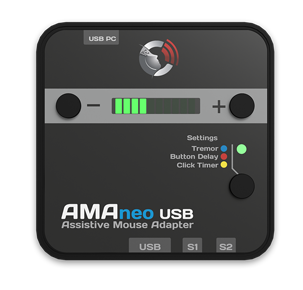
AMAneo BTi Mouse Interface for iOS devices with Tremor filter and Dwell function. *
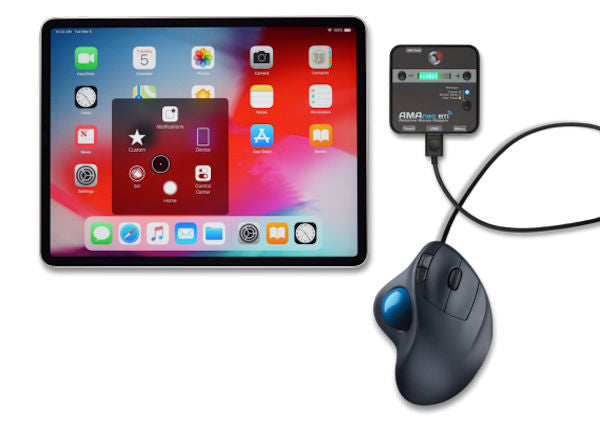
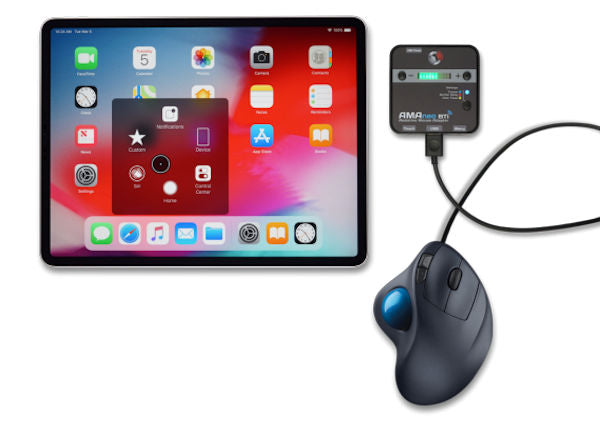
The Assistive Mouse Adapter AMAneo BTi allows people who cannot operate a touch screen to operate iPad and iPhone with assistive or ergonomic mouse (See approved list). A touch pointer can be moved like a mouse pointer within the touch screen. Even for people with hand tremor, the operation of iPad and iPhone is easier or even possible at all.
AMAneo BTi connects assistive and ergonomic mice via Bluetooth with iPad or iPhone and electronically filters the shaking of the hand or head if necessary, so that the touch pointer on the display still moves smoothly.
The intensity of the tremor filter can be adjusted. In addition, as an additional help, an adjustable click delay (the touch pointer is held at the current position corresponding to the click) and a dwell click function can be activated.
Essential characteristics:
- Bluetooth interface for iPad and iPhone
- USB port for assistive / ergonomic mouse - See Resources list for compatible mouse.
- Integrated battery for up to 20 hours of operation
- Adjustable tremor filter
- Adjustable click delay (button delay)
- Adjustable dwell click (click timer)
- 2 connections for external switches (left / right mouse button)
- MFi Product
 |
|
Note: AMAneo Compatibility - Whitelist & Blacklist.
Note: iPhone, iPad, iOS and AssistiveTouch are trademarks of Apple Inc., registered in the U.S. and other countries.
We recommend using wireless mice (not Bluetooth) as most of these are USB full speed.
Technical Notes
Problem: connected via Bluetooth but no mouse movement
If the AMAneo BTi is correctly connected via Bluetooth (visible in the Bluetooth settings on the iPad / iPhone), it may happen that the mouse pointer (Touch Pointer) cannot be moved (iOS/iPadOS 13.x).
Solution:
- Delete the Bluetooth connection AMAneo BTi in the iPad / iPhone.
- Reset AMAneo BTi (rear, small hole, press carefully with paper clip)
- Restart iPad / iPhone
- Reconnect Bluetooth
Assignment of the function of the mouse buttons / external switches
As of iOS / iPadOS V14.0, the assignment of the functions of the mouse buttons has been changed. The corresponding function must be assigned to the right mouse button / the “Menu” connection.
To assign functions to the mouse buttons or the externally connected switches, proceed as follows when the AMAneo BTi is connected:
- Select “Pointer Control” in the settings and then go through these menus:
- 20522 select (Art# of AMAneo BTi)
- Select “Button 2” or “Customize additional buttons”
- Press the button on the mouse or an external button.
- Assign function